Quote it, send it, convert it
The Quotes page is where you create and send quotes. Quotes are emailed to the customer, who can accept online — and an accepted quote converts straight into a work order or a maintenance job. Every quote moves through four statuses: draft, sent, accepted, and rejected.
Writing and saving a draft quote is always available. Sending one requires a verified phone number or email on the account — see verify your phone or email.
Create a quote
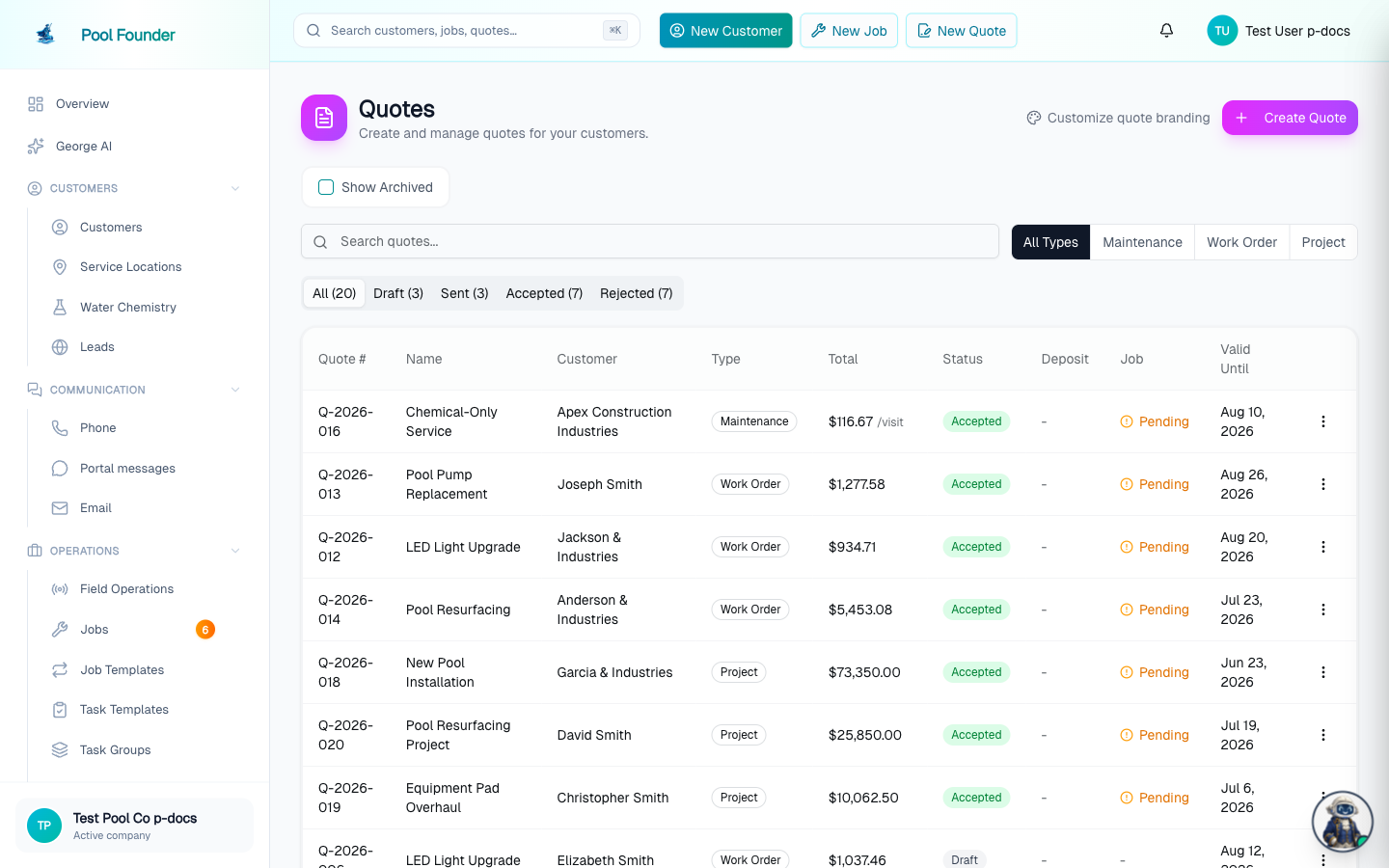
- 1Open Quotes and click Create Quote.
- 2The form is two steps: customer details, then line items and send.
- Work order quotes price with line items (title, price, and an optional description each). Maintenance quotes price with a single Price Per Visit plus a chemical billing choice (below).
- Valid For is required — 7, 14, 30, 60, or 90 days. The quote page shows "Valid for N days" in its timeline.
- Customer Message is included in the quote email sent to the customer; Internal Notes are only visible to your team and never appear in the email.
- The Customer Message supports rich formatting on the web quote builder — a toolbar above the box gives you bold, italic, a heading, bulleted and numbered lists, and links. The formatting carries through to the emailed quote, so a detailed message reads clean and professional. (Underline is not offered — underlined text reads as a link. Use Preview Email to see exactly how it will look.)
- Save reusable messages as templates. Above the message box, Save as template stores the current message (with its formatting) for your whole team, and Load template drops a saved one back in to edit before sending — handy when you send similar wording often. Templates are company-wide (everyone shares the same list) and you can delete one from the Load template menu; the limit is 50 per company.
- On work-order quotes, Add Discount adds a described dollar-amount discount that shows as its own line in the total.
Require a deposit on a work-order quote
Work-order quotes can require a deposit. Check Require Deposit in the pricing section and enter a flat dollar amount — the deposit is calculated on the subtotal before discounts. Your Stripe account must be connected; until it is, the form shows "Connect Stripe to require a deposit on quotes".
- When the quote is accepted, the deposit gets collected first. If the customer has a saved payment method, the accept dialog shows a "Charge deposit to" picker: choose Send Invoice to email a deposit invoice, or pick a saved card to charge the deposit on acceptance.
- With no saved payment method, a deposit invoice is emailed to the customer automatically.
- The quote page shows a Deposit Required card with live status: Pending before acceptance, then Awaiting Payment with a View Deposit Invoice link once the invoice goes out.
- Once paid, the deposit moves into the pricing breakdown as a Deposit paid line and the total becomes Remaining.
- Try to create the work order before the deposit is paid and a Deposit Not Yet Paid warning asks you to confirm first.
Chemical billing on maintenance quotes
Maintenance quotes carry a Chemical Billing choice that flows into the maintenance job when the quote converts:
- Chemicals billed separately — chemicals used are billed as additional line items.
- All chemicals included in price — the visit price covers all chemicals.
- Specific chemicals included — set included amounts per visit; overages and other chemicals bill separately. The quote page shows an Included Chemicals card listing what the per-visit rate covers.
Send and manage a quote
- On a draft quote: Send Quote emails it to the customer.
- On a sent quote: Resend, Mark Accepted, or Mark Rejected — useful when the customer answers by phone instead of clicking the link.
- Customers can also accept the quote themselves online from the emailed link — no marking needed on your end.
- On draft and sent quotes, Preview Email shows the exact branded email the customer receives before (or after) you send it.
See if the customer received and opened it
Once a quote has been emailed, an Emails card appears on the quote page listing every send with its live delivery status: Sent, Delivered, Opened (with an open count), and Clicked, plus Bounced or Marked spam if delivery failed. So when a customer says "I never got it," you can check whether the quote actually reached their inbox and whether they opened it.
The same delivery details also appear in the customer's Communications section on their profile and in the Email inbox under Comms, alongside your invoices and service reports. Note that "Opened" means they opened the email — accepting still happens from the link inside it, and shows up in the Timeline when they do.
Timeline: who did what, when
Every quote page has a Timeline card — a full audit log of the quote's life: Created, Updated, Sent, Accepted, Rejected, Archived, Unarchived, Job Linked, Invoice Created, and Invoice Paid. Each entry shows who performed it, with an Employee or Customer badge, and when — so you can see at a glance whether the customer accepted online or someone on your team marked it.
Archive a quote
- Archive (on the quote or from the list) hides a quote from the main list — useful for dead quotes you don't want cluttering the page.
- Check Show Archived above the quotes list to see archived quotes, and Unarchive to bring one back.
- Archiving and unarchiving are recorded in the quote's Timeline.
QuickBooks Estimate sync
With QuickBooks connected and quote syncing on, sent quotes sync to QuickBooks as Estimates. The quotes list shows a per-quote sync status icon (synced, pending, or failed), and the quote page shows the live state: QB Pending, a View Estimate in QuickBooks link once synced, or QB Sync Failed with a Retry button to re-sync that quote on the spot. See QuickBooks sync.
Convert an accepted quote
Once a quote is accepted, a card appears on it with two buttons: Create Work Order (for one-time work — see work order billing) or Create Maintenance Job (for recurring service — see create jobs). The quote becomes the job, so nothing gets re-typed.
Quotes elsewhere in Pool Founder
- The customer portal has a Quotes toggle on the Customer Portal Settings page, controlling whether customers see their quotes there.
- Technicians and owners can create a quote from the field: the mobile app's Route tab has a Create Quote action under the "Sales" heading. See mobile invoices and leads.
Frequently asked questions
Can my customer accept a quote online?
Yes — quotes are emailed and the customer accepts online from the link. You can also mark a sent quote accepted or rejected yourself if they answer another way.
What happens after a quote is accepted?
A card appears on the quote with "Create Work Order" and "Create Maintenance Job" buttons, so you convert it into the actual job without re-entering anything.
What statuses can a quote have?
Draft, sent, accepted, and rejected.
Can I collect a deposit when a quote is accepted?
Yes — check Require Deposit on a work-order quote (Stripe must be connected). On acceptance you either charge a saved card or send a deposit invoice, and the quote shows the deposit status live until it's paid.
Can I see if my customer received or opened a quote?
Yes — after a quote is emailed, an Emails card on the quote page shows each send with Sent, Delivered, Opened, and Clicked status (and Bounced if delivery failed). The same tracking appears in the customer's Communications section and the Comms Email inbox.
Can I format the customer message on a quote?
Yes — on the web quote builder the Customer Message has a formatting toolbar: bold, italic, a heading, bulleted and numbered lists, and links. The formatting is carried into the quote email the customer receives. Underline is not offered because underlined text looks like a link. Use Preview Email to see exactly how it renders. Quotes created from the technician mobile app use a plain-text message.
Can I save a quote message and reuse it?
Yes. Above the Customer Message box, use Save as template to store the current message (formatting included), then Load template to drop it into a future quote and tweak it before sending. Templates are shared across your whole team, and you can delete any of them from the Load template menu (up to 50 per company).
How do I hide old quotes without deleting them?
Archive them. Archived quotes leave the main list but stay searchable under Show Archived, and can be unarchived any time.